Rotate pages in PDF: a practical guide
Published
A sideways page in a PDF can be a small annoyance until you need to print the document, share it with someone, or submit it for work. You open the file, turn a page so you can read it, and everything seems fine. Then you close the document, open it again, and discover that the page is sideways all over again.
This happens because not every PDF viewer saves rotation changes. Some applications only change how a page appears on your screen, leaving the actual document untouched.
Fortunately, you can rotate pages in a PDF without recreating the document or converting it into another file format. You can correct a single sideways page, turn an entire scanned document, or fix several pages facing different directions.
The important part is knowing how to save those changes permanently while keeping the original content intact.
Why do PDF pages sometimes appear sideways?
PDF files don't have to contain pages facing the same direction. A document might include portrait pages with ordinary text, landscape pages with wide tables, and scanned attachments with their own orientation.
That combination isn't necessarily a problem. In fact, mixed page orientations are common in reports, contracts, presentations, and technical documents.
The problem usually appears when a page's orientation doesn't match its content.
Consider a typical office situation. Someone scans a stack of paperwork using a document scanner. Most sheets are placed vertically, but one or two are accidentally inserted horizontally. The scanner saves everything into a single PDF, and the incorrectly positioned pages appear sideways.
Another common example involves combining documents. You might merge a portrait-oriented report with a landscape spreadsheet and a few scanned receipts. Depending on how the original files were created, some pages may require adjustment.
Even documents created on a phone can have this problem. If the device changes orientation while you're scanning or photographing paperwork, the resulting pages might not all face the same way.
The good news is that a document with incorrectly oriented pages doesn't necessarily contain damaged or missing information. Often, the content is perfectly fine. It just needs to be displayed in the correct direction.
The difference between rotating a PDF view and saving the rotation
Before changing anything, it helps to understand how PDF rotation works.
Many PDF readers include a button that rotates a page clockwise or counterclockwise. Clicking it makes the page easier to read, but that doesn't always mean the original document has changed.
Some readers treat rotation as a viewing preference. You can turn the document on your screen, read it comfortably, and continue working. But when you reopen the file or send it to another person, the original orientation may still be there.
A permanent rotation works differently.
PDF documents can store rotation information for individual pages. When an editor updates that information and saves the result, compatible PDF viewers can display the page in its corrected orientation the next time the file is opened.
For example, imagine receiving a scanned agreement containing five pages. Four pages are upright, but the third page is sideways. Rotating the view might help you read page three temporarily. Saving a permanent rotation allows the corrected page direction to remain part of the document.
That distinction matters when you're sharing files with coworkers, customers, teachers, or anyone who might open them using different software.
Changing the appearance on your screen is not always enough. The correction needs to be saved into the PDF itself.
One simple way to check is to close the corrected document completely and reopen the saved copy. If the pages still face the right direction, you've confirmed that the adjustment was preserved.
How to rotate PDF pages and save the changes permanently
You don't need advanced PDF editing skills to correct page orientation. The process is usually straightforward, especially when the editor provides a preview of every page.
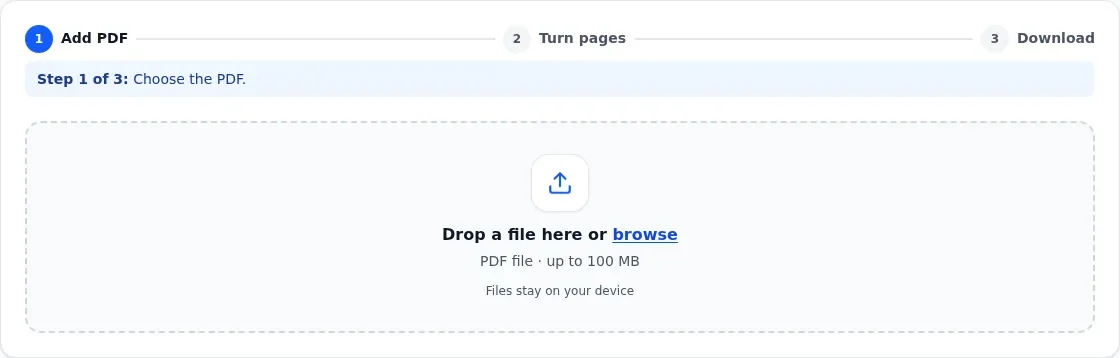
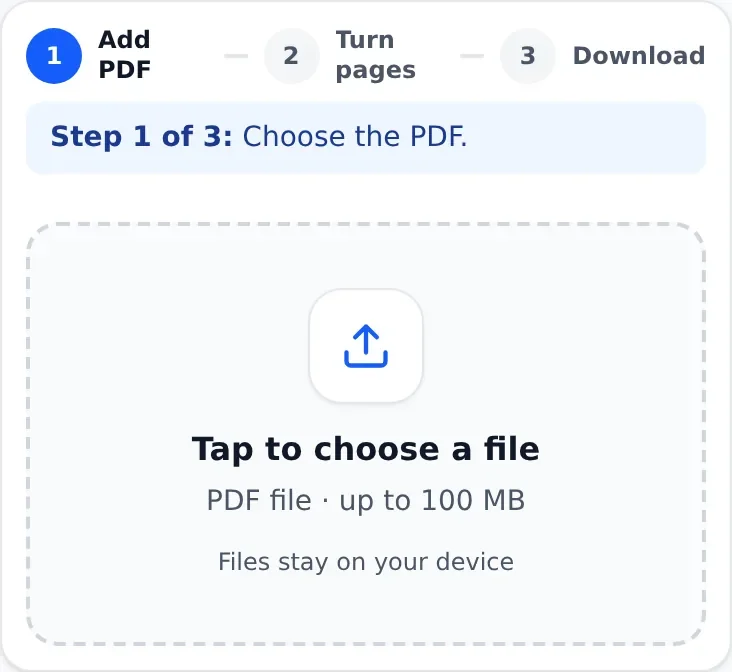
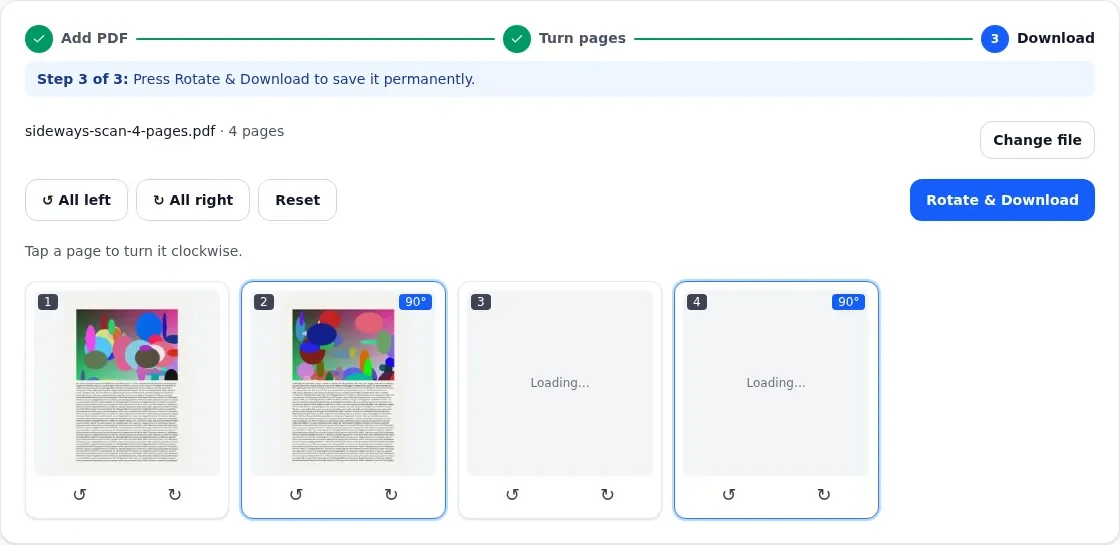
You can use a desktop PDF editor or a browser-based tool that supports permanent page rotation. If you don't already have suitable software installed, UtilHub's free Rotate PDF tool is one option. It allows you to turn individual pages or the entire document directly in your browser, with the selected PDF processed on your own device.
Regardless of which editor you choose, the basic process is similar.
- Open the PDF document. Select the file containing the pages you want to correct. If it's an important document, keep a copy of the original before making changes.
- Review the page orientation. Look through the document and identify any pages that appear sideways or upside down. Thumbnail previews are particularly helpful for longer documents.
- Select the affected pages. If only one page is incorrect, select that page. If every page needs the same adjustment, look for an option that rotates the whole document.
- Choose the correct direction. Rotate clockwise or counterclockwise until the content is readable. Some pages may require a 180-degree turn rather than a quarter-turn.
- Check the previews. Make sure the adjusted pages look correct and that the pages you didn't intend to change still have their original orientation.
- Save the corrected PDF. Use the editor's save, export, or download option to create a document containing the updated rotation settings.
- Reopen the saved file. Check the corrected pages again before printing or sharing the document.
It's worth keeping the original file until you've inspected the result. This is particularly helpful with documents containing many pages, where a small mistake might not be obvious immediately.
If you're working with confidential paperwork, also consider how your chosen editor handles files. Some online services process documents on remote servers, while browser-based tools that perform processing locally can avoid transferring the document to a server for that operation.
Should you rotate one page or the entire PDF?
The right approach depends on how many pages need correcting.
Rotating everything at once can save time, but it isn't always the best choice. If a document already contains correctly oriented pages, a global rotation can turn those pages in the wrong direction.
When to rotate individual pages
Imagine a twelve-page report. Most of the document contains ordinary text, but pages four and nine include wide charts. During scanning, those charts were saved sideways.
Rotating all twelve pages would create more problems than it solves. Instead, you would adjust only pages four and nine.
Individual page rotation is useful for scanned receipts, contracts with landscape attachments, financial reports, and documents assembled from several sources.
It also gives you more control when different pages require different corrections. One page might need a clockwise turn, while another needs to be rotated in the opposite direction.
When to rotate all pages
Now imagine opening a forty-page scanned manual and finding that every page is sideways in exactly the same direction.
Correcting those pages individually would be unnecessary work. If your editor supports rotating the entire document, applying the same adjustment to every page is much faster.
Before doing that, check a few pages throughout the PDF. Occasionally, a document that appears consistently sideways at first contains one or two pages that were originally saved correctly.
Choosing between 90, 180, and 270 degrees
Most PDF editors support rotation in increments of 90 degrees.
- 90 degrees clockwise: Turns the page one quarter-turn to the right.
- 180 degrees: Turns the page upside down relative to its original position.
- 270 degrees clockwise: Produces the same orientation as turning the page 90 degrees counterclockwise.
You don't need to calculate the angle in advance. Start with a quarter-turn and check whether the text is upright. If it isn't, adjust the direction until it looks correct.
Also remember that landscape pages are not inherently incorrect. A wide table or diagram may be intentionally designed for horizontal reading. The goal is to make the content readable, not force every page into portrait orientation.
Does rotating a PDF reduce image or text quality?
One concern people often have about PDF editing is whether saving a changed file will reduce its quality.
That depends on what the editing software actually does.
Some editing workflows rebuild pages or convert content into images. Depending on the output settings, this can change the appearance or quality of the document.
However, rotating a PDF doesn't necessarily require that kind of processing. A page can be rotated by updating its stored rotation information while leaving the underlying content unchanged.
What happens to scanned images?
Scanned PDFs often contain full-page images. Each page may effectively be a picture of the original paper document.
If an editor modifies only the page orientation, the image itself can remain unchanged. This matters for scanned forms, handwritten signatures, and documents containing small printed text.
For a practical example, UtilHub tested a four-page scanned PDF in October 2026. The document was approximately 13 MB, with two pages intentionally positioned sideways.
After correcting those pages and saving the file, the document still contained four pages. Its embedded JPEG images were identical to the original image data, and the overall file size changed by only 1,179 bytes.
That particular test demonstrates that page rotation can be saved without recompressing the scanned images. It doesn't guarantee identical behavior in every PDF application, but it shows why rotation and image compression should be considered separate operations.
Will the text remain selectable?
A text-based PDF contains actual characters that can usually be selected, copied, or searched.
When a PDF editor preserves the page contents and updates only their orientation, that text can remain accessible.
In a separate test involving a three-page text document, rotating every page counterclockwise preserved the text extracted from the first page. The same 5,948 characters were present before and after the operation.
It's still worth checking the finished file if searchable text is important to you.
There's also a distinction between text-based PDFs and scanned documents. If a page is simply an image of printed text, rotating it doesn't automatically turn the words into searchable characters. That requires optical character recognition, usually called OCR.
How to rotate PDF pages on different devices
You can correct PDF orientation on a desktop computer, laptop, tablet, or phone. The available options depend on your operating system and the applications installed.
Rotating PDF pages on a Mac
Mac computers include Preview, which can open and edit PDF documents without requiring a separate installation.
Open your PDF in Preview and display the page thumbnails. Select the page that needs correcting and use the rotation controls to adjust its orientation.
If multiple pages require the same change, Preview also supports working with selected page thumbnails.
Save the document after making the adjustments, then reopen it to confirm that the new orientation remains.
This is a convenient method when you're working with files already stored on your Mac and only need simple page changes.
Rotating PDF pages on Windows
On Windows, PDFs often open in a browser or another installed document viewer. These applications may provide rotation controls, but you should check whether the change can actually be saved.
If your viewer only rotates pages temporarily, use a PDF editor that supports permanent page changes.
Once the adjustment is complete, save a corrected copy rather than relying on the current viewing position.
For longer documents, choose an editor with page thumbnails. Being able to inspect the entire document makes it easier to identify which pages need correction.
Rotating PDF pages on iPhone
Using an iPhone doesn't mean you have to transfer the document to a computer first.
On supported versions of iOS, Apple's Preview app provides tools for working with PDF pages, including rotation.
You can open the document, access its page controls, and adjust the selected page in the direction you need.
Browser-based PDF editors are another option, particularly when you prefer to work directly with a file stored on your device.
This can be useful when you're scanning receipts, forms, or handwritten documents using your phone and discover that one page was captured in the wrong direction.
Rotating PDF pages on Android
Android users can work with PDFs through compatible editing applications or browser-based tools.
If you're using a scanning application, check whether it offers page rotation before exporting the finished PDF. Correcting orientation during the scanning process can eliminate the need for another editing step later.
If the PDF already exists, use an editor capable of saving the updated page orientation.
After saving, open the new copy in your usual PDF viewer to make sure the result is correct.
Common problems when rotating PDF pages
Even a straightforward task like page rotation can produce confusing results. Most problems are related to saving, selecting the wrong pages, or using a viewer that doesn't modify the underlying document.
The page looks correct, but the rotation disappears
This usually happens when the application changes only the viewing orientation.
Look for an option that saves or exports an updated PDF rather than simply rotating what appears on your screen.
After saving, close the document and open the resulting file again. If the orientation is still wrong, try an editor specifically designed for modifying PDF pages.
The wrong page was rotated
This is easy to do when several pages have similar layouts.
Check the page numbers and thumbnails carefully before applying changes. If you accidentally turn the wrong page, rotate it back to its original position.
For documents containing many scanned pages, it can help to review the entire PDF before saving so you don't miss other orientation problems.
The corrected PDF has a different file size
A small change in file size doesn't necessarily indicate that content has been lost or image quality has been reduced.
When a PDF is saved, its internal structure may be rewritten or reorganized. This can affect the final number of bytes even when the visible document remains the same.
However, a much larger difference in file size deserves closer inspection, especially if your editing workflow includes converting or recompressing pages.
Compare the original and corrected documents if you need to preserve fine details or high-resolution images.
The PDF looks fine but prints incorrectly
Page rotation and printer settings are separate things.
Even if the PDF opens in the correct orientation, your print dialog may still use settings that don't match the document.
Before printing, check the paper size, portrait or landscape setting, margins, and scaling options.
For example, a wide chart may display correctly after rotation but still print too small if the printer attempts to fit it onto a portrait page.
Always inspect the print preview before printing a long document or multiple copies.
Some pages are still upside down
If you rotated an entire document, pages that originally faced different directions may still be incorrect afterward.
Review those pages individually and make the necessary adjustments.
This often occurs in PDFs assembled from multiple scans or different document sources. A combination of global and individual page rotations may be needed to correct the final document.
Frequently asked questions
Can I permanently rotate a PDF without converting it to another format?
Yes. A PDF editor that supports saving page rotation can update the document directly. You don't need to convert the pages into images or recreate the file in a word processor. Simply rotate the affected pages and save the corrected PDF.
Does rotating a PDF change the page dimensions?
Not necessarily. Rotation changes the direction in which the page is displayed, while the underlying page geometry may remain the same. If you need to change the actual paper dimensions or margins, that is a separate editing task.
Can I rotate a scanned PDF without losing quality?
Yes, when the editing method preserves the original scanned images and changes only the page rotation information. Not all PDF processing workflows work identically, so it's sensible to compare the corrected document with the original when image quality matters.
Why can't I save a rotated PDF?
Your current application may support viewing rotation without allowing permanent edits. Another possibility is that you're opening a protected document with editing restrictions. Check the PDF's permissions and use an editor that supports saving page-level changes when permitted.
Should I rotate PDF pages before combining multiple documents?
Either approach can work. If you already know which source files are incorrectly oriented, correcting them before combining may make the final document easier to review. If you've already combined everything, rotating individual pages afterward is often more convenient.
Final thoughts
Fixing a sideways PDF usually takes only a few adjustments, but the difference between temporary viewing rotation and permanent page rotation is essential.
Choose the pages that actually need changing, use the correct rotation direction, and save a new copy when possible. If you're working with scanned documents, make sure the editing method preserves the original image quality.
Most importantly, don't assume that a page is permanently corrected just because it looks right in the editor. Reopen the saved document and check the result before sending it to someone else.
A quick final review can save you from having to correct, resend, or reprint the same document later.
Screenshots