Chmod calculator: a practical guide
Published
A chmod calculator converts Linux and Unix file permissions into a three-digit number such as 644 or 755, a readable permission string such as rwxr-xr-x, and a command you can use in a terminal. It is useful when you know who should be able to read, edit, or run a file but do not want to calculate each permission digit from memory. The important part is choosing the right access before copying the command.
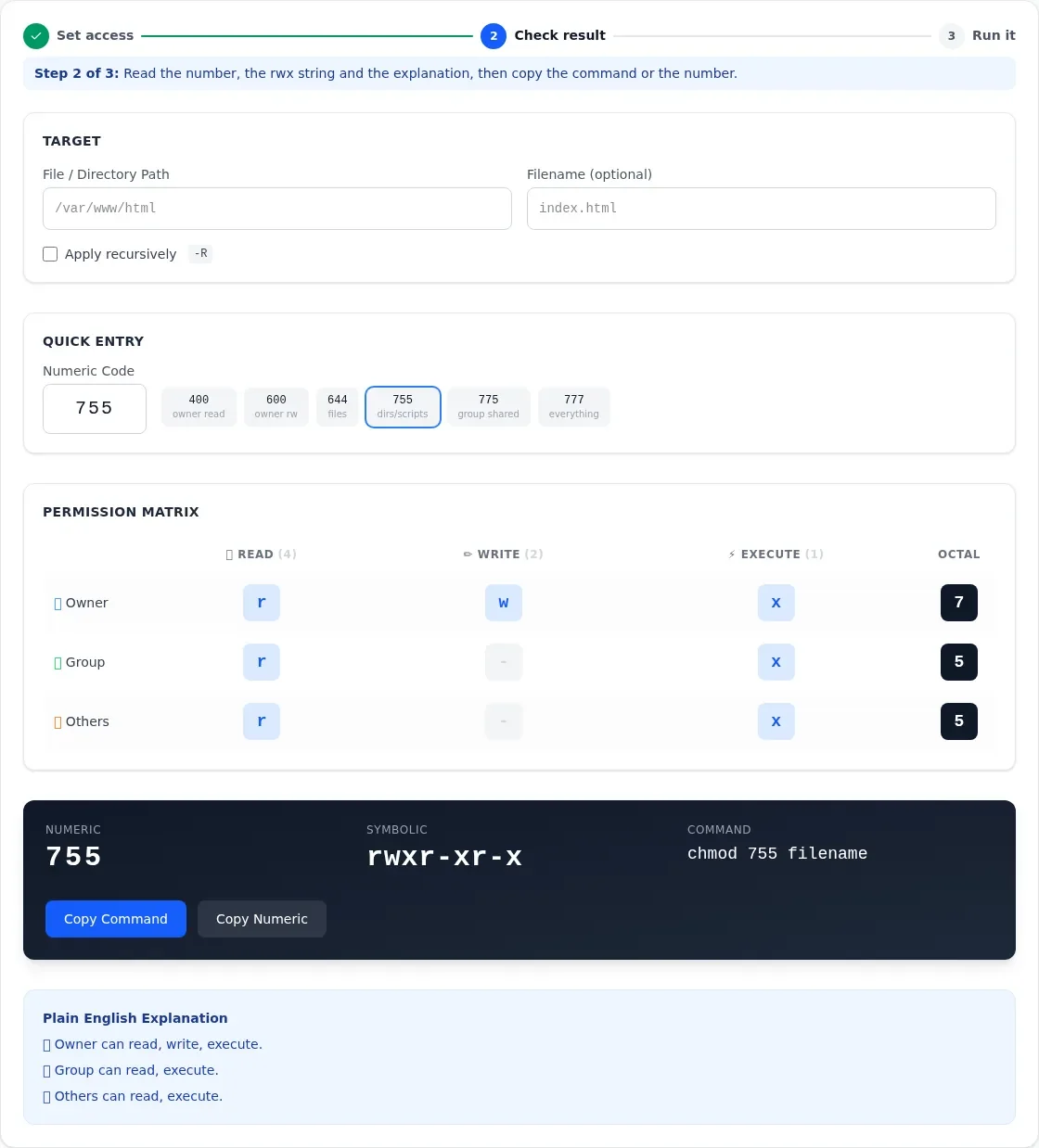
For a quick visual check, the UtilHub chmod calculator lets you select read, write, and execute access for the owner, group, and everyone else. It also works in reverse: enter a numeric mode to see what it allows. The tool creates a command; you still decide where, and whether, to run it.
How chmod numbers are calculated
The name chmod stands for change mode. On Unix-like systems, a file has an owner, an associated group, and a set of permissions for other users. Basic numeric permissions describe those three categories in that order: owner, group, others.
Within each category, read is worth 4, write is worth 2, and execute is worth 1. Add the values for the permissions you want to grant. Each total becomes one digit in the numeric mode. The digits run from 0 to 7, because the notation is octal rather than ordinary decimal.
For example, an owner who needs read, write, and execute gets 4 + 2 + 1 = 7. A group that needs read and execute gets 4 + 1 = 5. If everyone else should have read and execute too, the result is 755.
The same calculation explains 640: the owner gets read and write (6), the group gets read only (4), and other users get nothing (0). Because the result is based on a few small sums, you can check a calculator's output manually when working with sensitive files.
Numeric modes are not percentages or decimal quantities. A mathematical modulo operation, sometimes shortened to “mod,” calculates a remainder. That is a different task from chmod, which changes access permissions.
What read, write, and execute really allow
For an ordinary file, read permission lets you view its contents. Write permission permits changing its contents, subject to other access controls. Execute permission allows an executable file or script to be run when the system and the file format support it. A text document normally does not need that last permission.
Directories behave differently, and this is where many confusing errors start. Read on a directory allows listing its entries; execute allows searching or traversing through it to reach a named item. Write, generally together with execute, is needed to create, rename, or remove directory entries.
That means file access also depends on the folders leading to it. You might have read permission on report.txt but still be unable to open it if you cannot traverse its parent directory. Conversely, someone with sufficient write and execute rights on a directory may be able to delete a file there even when they cannot edit that file's contents.
These distinctions matter on shared development servers. Giving a colleague permission to edit a particular file is not the same as allowing them to replace or remove any file in its directory. Evaluate file and directory permissions separately instead of choosing a single number for an entire project.
Choosing permissions for common situations
Regular website files: 644
For a conventional file that should be editable by its owner and readable by others, 644 is a common starting point. The symbolic form is rw-r--r--. It is often suitable for ordinary public web assets or source files when the surrounding ownership and hosting setup are appropriate.
It is not a universal default for every file. Private keys, environment files containing secrets, and other sensitive material may require tighter access. A public-readable file is potentially visible to local users beyond the account that owns it.
Directories and executable scripts: 755
755 allows the owner full basic access and gives the group and others read and execute rights. On a directory, that usually permits listing and traversal without allowing other users to change the entries. On an executable script, it permits users with sufficient access to run it.
Do not mark every source file executable just because 755 works on directories. For a script that only its owner should run, a more restrictive mode may be better. The correct setting depends on who actually needs access.
Private files: 600 or 400
600 means the owner can read and write, while group members and others receive no ordinary permissions. It can be a reasonable starting point for a user-owned configuration file containing sensitive values. 400 removes the owner's write bit too, leaving owner read access only.
Neither mode makes a file invulnerable. An administrator with elevated privileges may still access it, and backups or copies may have separate permissions. Think of chmod as one layer of access control rather than encryption.
Trusted group collaboration: 664 or 775
In a shared workspace, 664 can let the owner and group edit a regular file while everyone else can read it. For directories, 775 can let a trusted group create or modify entries. These modes only make sense if the file's group is set correctly and its membership is controlled.
Group write permission should be intentional. It is not needed merely because several people can view a project. If only a specific team needs access, avoid opening permissions to every local account.
How to convert a mode into a working chmod command
You can move between the visual permission grid, the octal number, and the terminal command without changing the underlying access rules. A useful workflow is to decide the access first, verify the generated result, and then apply it to an exact path.
- Identify the target. Decide whether you are changing an individual file or a directory, and confirm its current owner and group.
- Select permissions by user category. Give read, write, or execute rights only to the owner, group, and others who need them.
- Convert the selections. Add
4,2, and1within each category, or enter the intended octal number in a calculator to check the resulting permission string. - Include the correct path. A command such as
chmod 640 report.txttargets a file namedreport.txtin the current directory. Paths with spaces need appropriate shell quoting. - Run and verify. After executing the command on the intended system, inspect the resulting permissions instead of assuming the change succeeded.
On GNU/Linux, ls -l report.txt displays a symbolic permissions string, while stat -c '%a %A %n' report.txt shows a numeric mode alongside its symbolic representation and name. The exact stat options can differ on other Unix-like operating systems, including macOS.
If ls -l shows a leading - before nine permission characters, that first character describes the file type; it is not part of the nine basic access bits. For a directory, the first character is normally d.
When symbolic chmod is better than a number
Numeric modes describe a complete basic permission arrangement. Symbolic changes can be safer when you only need to adjust one existing right and preserve the rest. The symbols u, g, and o refer to owner, group, and others; a means all three.
For example, chmod u+x deploy.sh adds the execute bit for the owner without intentionally changing the other basic permissions. chmod go-w config.ini removes write access from the group and others while leaving the owner's permissions alone. You can use + to add, - to remove, or = to assign a particular set.
This relative approach matters when someone has already configured a file carefully. Replacing its mode with 755 might grant read access to people who did not previously have it. A targeted symbolic edit is often easier to review in a shared project or deployment script.
Be aware that symbolic modes can also interact with the user's umask when no user category is specified. If you need predictable behavior, explicitly say whose permissions you intend to change.
Diagnosing permission denied without using 777
A permission error does not automatically mean the file needs more rights. First determine which account is attempting the operation, whether the operation is reading, writing, running, or traversing a directory, and which path is involved. Check each parent directory if the failure happens while opening a nested file.
For a script that will not execute directly, inspect whether its execute bit is set for the account running it. Also check the interpreter line, file format, and path. Changing the mode cannot repair an invalid script or a missing interpreter.
For a file that an application cannot edit, examine ownership and group membership along with the mode. The account running a service may differ from the account you use in an interactive terminal. If the wrong user owns the file, changing permissions broadly can hide the actual configuration problem.
Avoid using chmod 777 as a general repair. It gives owner, group, and others read, write, and execute rights. On shared machines, that can allow unrelated accounts or processes to alter the target. Permission settings should follow the access the application actually requires, not the widest mode that makes an error disappear.
If the basic mode looks correct, check for additional restrictions. Access control lists, filesystem attributes, read-only mounts, and other system security controls can limit operations even when ordinary rwx bits appear sufficient. A chmod calculator explains the basic mode; it does not diagnose every operating-system security rule.
Why recursive permission changes require extra care
The -R option tells chmod to apply a change through a directory tree. This is convenient, but directories and regular files often need different access. Running chmod -R 755 project can give execute permission to ordinary documents and source files that should not have it.
One GNU/Linux approach for a typical public-readable tree is to set directories and regular files separately. For example, find project -type d -exec chmod 755 {} + targets directories, while find project -type f -exec chmod 644 {} + targets regular files. Review your paths before running either command. The second command would also remove execute permission from scripts and other executable files.
GNU chmod offers the symbolic X permission as another option. Unlike lowercase x, uppercase X adds execute or search access conditionally, including for directories and for files that already have an execute bit. A command such as chmod -R u=rwX,go=rX project can help preserve the difference between ordinary files and directories in a suitable tree.
Still, there is no universal recursive command for every project. Private folders, shared write access, executable binaries, special permission bits, and existing ACLs may require exceptions. Prefer a small, verified change over a broad reset on a production system.
The default tool output covers the common three-digit modes. Unix permissions can also include a leading digit for special bits such as setuid, setgid, and the sticky bit. A three-digit calculator is not a complete substitute for reviewing those extended settings on shared directories or privileged executables.
Frequently asked questions
Does chmod change the owner of a file?
No. Chmod changes permission mode bits, not the identity of the owner or group. Ownership is managed separately, commonly with chown or chgrp on Unix-like systems. Check ownership before granting extra access to solve a problem that is actually caused by the wrong owner.
Why does chmod return operation not permitted?
You may not own the target or have the privileges required to change it. Some filesystems and security settings also restrict modifications. Check the file's ownership and the applicable environment rather than immediately retrying with broad administrative privileges.
Can I use a chmod calculator on Windows?
You can use an online calculator to understand Unix-style permission numbers from any device with a browser. However, ordinary Windows filesystems and Windows access-control settings do not map directly to Unix chmod modes. A Linux environment, Unix-compatible subsystem, or remote Unix server may use chmod, but native Windows permissions require the controls provided by that system.
Can a 755 directory contain files that are not public?
Yes. Directory traversal does not automatically grant permission to read every file inside it. Each file also has its own mode, and additional access controls may apply. However, a directory with broad list and traversal access can reveal filenames, so sensitive content still needs careful directory and file permissions.
Do I need a calculator every time I use chmod?
No. Once you remember that read is 4, write is 2, and execute is 1, you can calculate many modes yourself. A chmod calc is most useful when checking an unfamiliar combination, explaining access to a teammate, or confirming a command before making a change to a sensitive path.
The practical rule: assign access based on what each account needs, check files and directories separately, and verify the result on the target system. The number is easy to calculate; deciding the smallest useful set of permissions is the part that protects your files.
For command syntax and permission semantics, consult the GNU Coreutils chmod reference, especially before making recursive changes.
Screenshots